Executive Overview
In an era where smartphones serve as portable wallets, corporate workstations, and repositories for our most intimate personal data, the security of individual applications has never been more critical. Handing a mobile device to a child for a few moments of entertainment—or passing it to a colleague to show a photograph—should not come with the underlying anxiety that the user might stumble three menus deep into sensitive banking applications, private email threads, or confidential text messages.
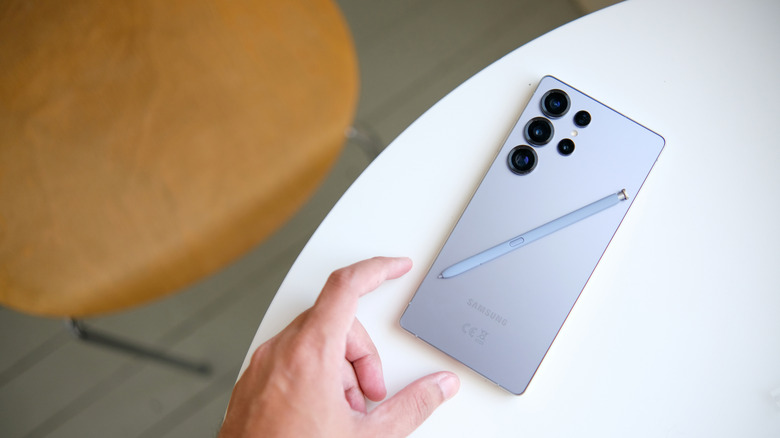
While operating systems like Apple’s iOS offer straightforward, granular controls allowing users to execute a simple long-press on an app icon and mandate a Face ID scan before launch, Android ecosystems—specifically Samsung’s One UI interface—take a markedly different architectural path. Samsung has consciously chosen to bypass a basic, standalone application-locking toggle. Instead, the South Korean tech giant splits device-level security and access restriction into two distinct mechanisms: Secure Folder and App Pinning.
Neither of these features represents a direct, one-to-one clone of Apple’s application gating philosophy. However, when deployed thoughtfully, they cover a significantly broader spectrum of security use cases—ranging from impenetrable hardware-backed encryption to temporary, situational sandboxing. This comprehensive guide explores why Samsung abandoned the simplistic app-lock model, evaluates the technical underpinnings of Samsung Knox, and provides step-by-step methodologies for leveraging Secure Folder and App Pinning to protect your digital footprint from prying eyes, inquisitive children, and potential malicious actors.
Detailed Chronology: The Evolution of Samsung’s Mobile Security Architecture
To understand how Samsung Galaxy phones handle application security today, it is necessary to examine the historical trajectory of Android permissions and Samsung’s proprietary software layers.
The Early Days of Android Permissions
In the nascent stages of the Android operating system, application security relied almost entirely on permissions granted at the time of installation. If a user installed a flashlight app that requested access to their contacts and location, the operating system issued a blanket warning, but offered little recourse once installed short of complete uninstallation.

As smartphones evolved into primary computing devices, users demanded more nuanced control. Third-party developers rushed to fill the gap, flooding the Google Play Store with standalone "App Lock" utilities. These applications typically operated by drawing windows over other apps, intercepting touch inputs, and demanding a PIN or pattern before allowing the underlying app to display its contents. However, these third-party solutions frequently suffered from performance bottlenecks, battery drain, and critical security vulnerabilities that could be bypassed by simply force-stopping the locker app via the Android system settings.
The Rise of Samsung Knox and Secure Folder
Recognizing the enterprise potential of Android devices—and the strict security compliance demanded by government and corporate clients—Samsung developed Samsung Knox. Introduced initially as a hardware-and-software-integrated security solution for enterprise fleets, Knox eventually trickled down to consumer-grade Galaxy devices.
Rather than patching a simple software lock over standard applications, Samsung engineered Secure Folder as a consumer-facing application of Knox architecture. Instead of gating an existing app behind an authentication wall, Secure Folder creates an entirely isolated, encrypted virtual machine container within the device’s flash storage. Apps installed within Secure Folder are treated as entirely separate instances from their main-system counterparts. They possess distinct data directories, separate login credentials, and isolated cache systems.
Over the years, user advocacy groups and consumer forums have continuously pushed Samsung to adopt a lightweight, single-tap application lock akin to iOS. Despite these persistent requests, Samsung has doubled down on its dual-pronged approach, maintaining that Secure Folder provides a vastly superior security posture against advanced threats, while App Pinning satisfies the casual, low-stakes need for temporary restrictions.
Supporting Context & Metrics: The Anatomy of Galaxy Security Tools
When evaluating how to best lock down a Samsung Galaxy phone, users must understand the specific technical trade-offs between Secure Folder and App Pinning. The table below outlines their primary operational differences:

| Security Feature | Primary Use Case | Underlying Technology | Setup Complexity | Protection Level |
|---|---|---|---|---|
| Secure Folder | Long-term protection for sensitive data (banking, private photos, messages) | Samsung Knox (Hardware-backed encryption & containerization) | Moderate (Requires Samsung Account & configuration) | Extremely High (Data is encrypted at rest and isolated) |
| App Pinning | Temporary restrictions (e.g., letting a child play a specific game) | Native Android Accessibility / Window Manager feature | Minimal (A simple toggle in system settings) | Low (Prevents navigation, but offers no file encryption) |
The Mechanics of Samsung Knox
Samsung Knox operates on a multi-layered security approach that begins at the silicon level during the manufacturing process. When a device boots up, Knox hardware fuses verify the integrity of the bootloader. If any unauthorized software modification is detected, the Knox warranty bit is permanently tripped, locking down sensitive partitions.
Within this hardened environment, Secure Folder carves out an isolated cryptographic space. Data inside the Secure Folder is encrypted using Advanced Encryption Standard (AES) with 256-bit keys. Even if the device is connected to a computer via USB while unlocked, files within the Secure Folder remain inaccessible without passing the container’s dedicated authentication layer (PIN, password, pattern, or biometric scan).
App Pinning: The Low-Stakes Sandbox
Conversely, App Pinning is not designed to protect your personal data from sophisticated breaches. Rooted deep within Android’s window management system, App Pinning essentially "pins" a single application to the foreground of the screen, disabling the home button, recent apps button, and notification shade pull-down gestures.
While this prevents a user from accidentally (or intentionally) exiting a mobile game to browse your personal text messages, it offers zero file-level security. If the device is rebooted, or if a specific multi-button combination is entered (depending on device security settings), the pin is released, returning the device to its normal state.
Step-by-Step Implementation: How to Secure Your Samsung Galaxy Phone
Method 1: Deploying Secure Folder for Maximum Privacy
If your goal is to permanently shield sensitive financial applications, private photo galleries, and confidential communications from unauthorized access, Secure Folder is the definitive solution. Here is how to configure and optimize it on your Galaxy device:
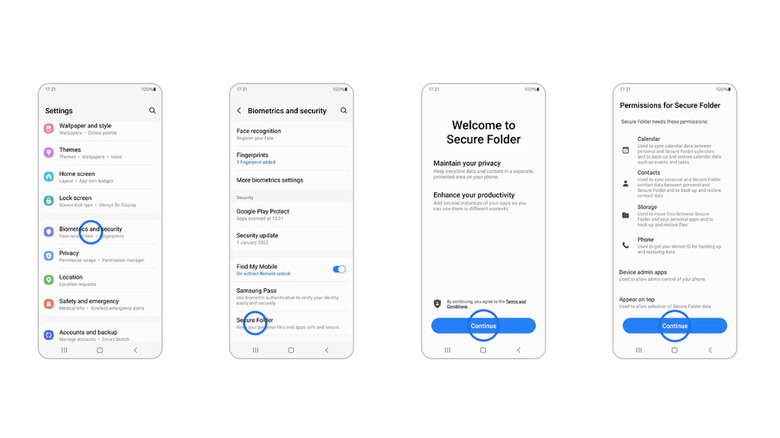
- Initiate Setup: Navigate to your phone’s Settings, scroll down, and select Security and privacy (or Biometrics and security depending on your One UI version). Tap on Secure Folder.
- Sign In: The system will prompt you to sign in using your Samsung Account. This is mandatory for recovery and synchronization purposes.
- Choose Authentication Method: Select your preferred lock type—PIN, Password, Pattern, or Fingerprint. Ensure you choose a combination distinct from your main lock screen PIN for an added layer of defense.
- Populate the Vault: Once the Secure Folder interface opens, you can tap the "+" (Add apps) icon to duplicate existing applications from your main system into the secure container, or download fresh applications directly from the Galaxy Store/Google Play Store while inside the container.
- Optimize Discretion: To ensure maximum privacy, you can hide the Secure Folder icon from your app drawer and home screen. Access your Quick Panel (swipe down twice from the top of the screen), locate the Secure Folder toggle, and turn it off. When hidden, applications inside the Secure Folder will cease background synchronization and will not push notifications, ensuring absolute peace of mind.
Method 2: Utilizing App Pinning for Quick, Temporary Restrictions
For situations where full cryptographic isolation is unnecessary—such as handing your device to a toddler to play an educational game—App Pinning provides an instantaneous sandbox:
- Enable the Feature: Open Settings, navigate to Security and privacy, select More security settings, and toggle on Pin app.
- Access the Recents Menu: Open the application you wish to restrict (e.g., a mobile game), then tap the Recent Apps button (the three vertical lines or navigation gesture handle at the bottom of your screen).
- Pin the Application: Tap the icon located at the top of the app’s preview window in the recent apps switcher, and select Pin this app.
- Unpinning: To exit the pinned state, press and hold both the Recents and Back buttons simultaneously (or swipe up and hold, depending on your navigation bar settings). The device will immediately lock itself, requiring your main screen lock PIN, pattern, or biometrics to resume normal operation.
Note: App pinning works exceptionally well with younger children who have not yet learned advanced device navigation, as on-screen instructional prompts briefly appear to explain the unpinning gesture when physical buttons are pressed.
Official Statements and Industry Perspective
Samsung’s product development teams have consistently defended their architectural decisions regarding application security. In corporate communications and developer conferences, Samsung representatives emphasize that consumer privacy cannot rely solely on superficial software gimmicks.
"Modern mobile security demands a holistic approach that protects data at rest, in transit, and in execution," notes a leading Samsung security whitepaper. "By channeling advanced data protection through the hardware-backed Knox framework rather than relying on basic application wrappers, we ensure that private information remains fundamentally quarantined from unauthorized users, regardless of whether they gain physical access to the device’s unlocked home screen."
Independent cybersecurity analysts have largely validated Samsung’s rationale. While usability experts frequently point out that the lack of a simple app-lock toggle frustrates casual users accustomed to iOS, cryptographic specialists praise Secure Folder for providing enterprise-grade containerization on consumer hardware. The consensus across the tech industry is clear: while Samsung’s method requires a steeper learning curve and a more deliberate setup process, the resulting security posture is vastly superior to traditional, easily bypassed application lockers.
Future Outlook: What’s Next for Samsung Galaxy Security?
As mobile operating systems continue to evolve, the boundary between consumer convenience and enterprise-grade security is expected to narrow further. With upcoming iterations of Samsung’s One UI interface, industry insiders anticipate deeper integration of artificial intelligence into device security management.
Future Galaxy devices may utilize predictive AI models to automatically recognize usage contexts—for instance, automatically routing financial and messaging applications into isolated security containers when the device detects it is being handed to an unfamiliar user or entering a public space. Furthermore, as biometric authentication standards transition toward more advanced under-display facial scanning and multi-factor behavioral analysis, the friction associated with unlocking secure containers like Secure Folder is projected to decrease significantly.
In the interim, mastering the dual tools of Secure Folder and App Pinning remains essential for any Samsung Galaxy owner. Whether you are safeguarding multi-thousand-dollar investment portfolios or simply preventing your children from accidentally purchasing digital goods within mobile games, Samsung’s ecosystem provides the sophisticated framework required to maintain absolute control over your digital environment.