Executive Overview
In the modern digital landscape, user attention is a finite and fiercely contested commodity. As smartphones have evolved into indispensable extensions of daily life, the friction associated with switching between applications to check transient updates—such as a delivery ETA, a boarding gate change, or the current score of a live sporting event—has become a persistent user experience bottleneck. Apple addressed this design challenge with the introduction of Live Activities, a transformative feature designed to keep users informed at a glance without requiring them to unlock their devices or constantly re-open apps every few minutes.
Originally arriving alongside the hardware evolution of the Dynamic Island on the iPhone 14 Pro, Live Activities bridge the gap between static lock screen notifications and active application interfaces. By transforming spatial hardware constraints into interactive notification hubs, Apple has redefined how real-time data is presented across iOS.
Furthermore, this utility extends beyond the handheld device and into the automotive environment through Apple CarPlay. By projecting these persistent data feeds onto the car’s dashboard display, Apple ensures that drivers can track critical updates safely, minimizing cognitive load and distraction behind the wheel. This comprehensive guide provides an authoritative, deep-dive examination of how Live Activities operate, why they matter within the broader ecosystem of iOS hardware design, and step-by-step instructions on how to enable, troubleshoot, and optimize them on both your iPhone and your CarPlay-equipped vehicle.
Detailed Chronology: The Evolution of the Dynamic Island and Real-Time iOS Integration
To fully appreciate the utility of Live Activities, one must understand the hardware and software trajectory that made them possible. The narrative of real-time iOS alerts is deeply tied to Apple’s ongoing hardware miniaturization efforts and its philosophy of turning engineering hurdles into signature design features.
The Hardware Shift: Moving Beyond the Notch
For several years, the smartphone industry converged on a singular design language for front-facing camera cutouts. While the broader Android ecosystem rapidly transitioned to minimalist hole-punch cutouts, Apple persisted with a wider structural notch on its flagship devices starting with the iPhone X. This cutout housed the intricate TrueDepth camera system necessary for secure biometric authentication via Face ID.
The turning point arrived with the launch of the iPhone 14 Pro. Apple replaced the traditional notch with a distinct, pill-shaped cutout separated from the top bezel of the display. Rather than attempting to mask this physical hardware footprint with aggressive software tricks or dark wallpapers, Apple leaned directly into the constraint.
Birth of the Dynamic Island
Apple introduced the Dynamic Island, a software-driven morphing interface that surrounds the hardware cutouts. By utilizing OLED panel technology—where pixels turn completely black to blend seamlessly with the physical bezel hardware—the interface expands and contracts fluidly to present system alerts, background tasks, and persistent data feeds.
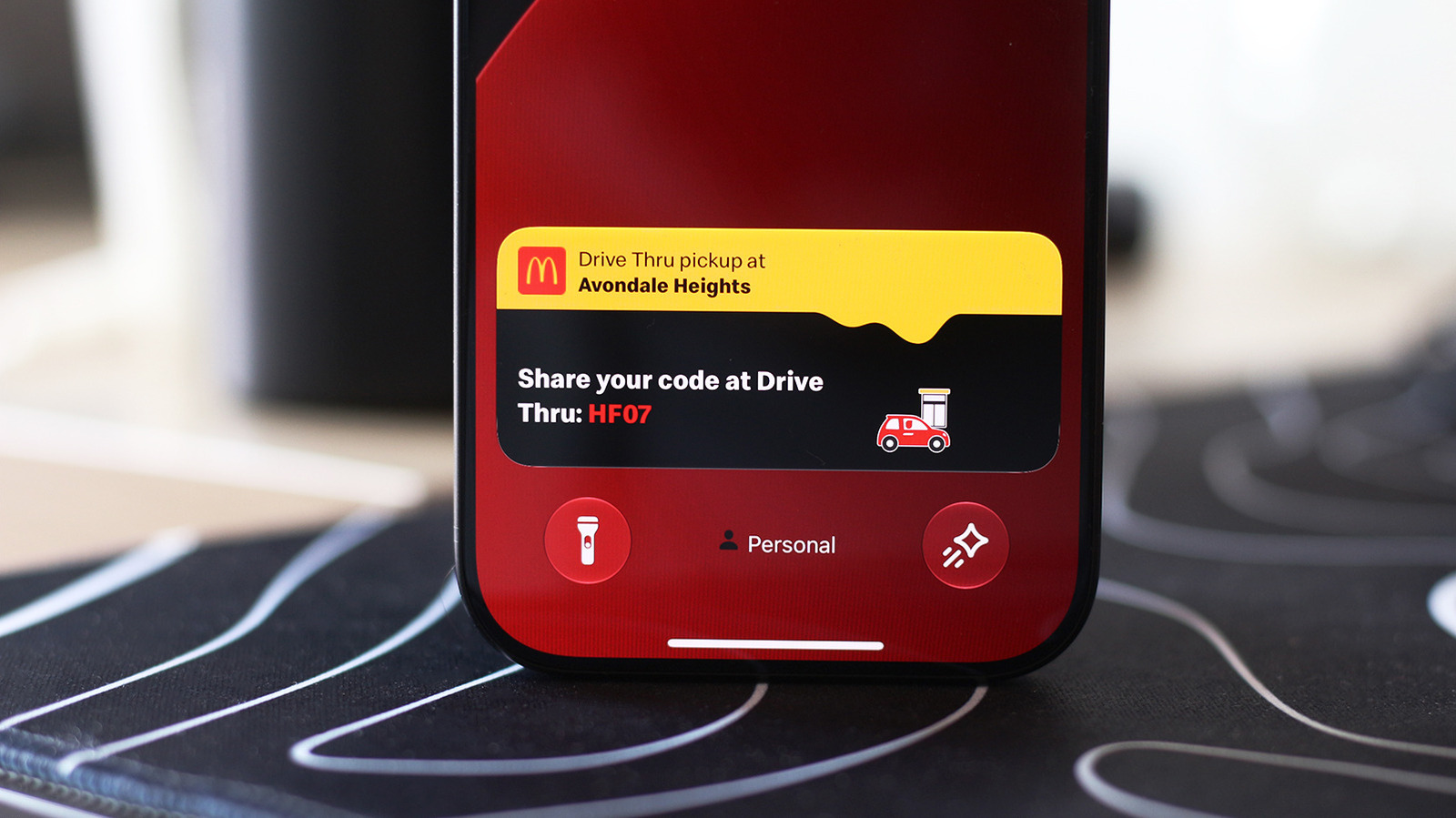
Simultaneously, Apple introduced Live Activities within iOS, giving developers a standardized API to push dynamic, interactive content directly to this new hardware focal point and the Lock Screen.
Continued Hardware Refinement
Apple’s commitment to this design philosophy has solidified over subsequent product generations. Aside from budget-tier variants and specialized baseline models, the pill-and-hole configuration has become the defining hardware marker of pro-level iPhones. Rumors and early architectural specifications for upcoming devices—such as the iPhone 18 Pro series—indicate that Apple is continuing to optimize the underlying sensor array, working toward an even smaller footprint for the Dynamic Island while expanding the software capabilities tied to it.
Supporting Context & Metrics: How Live Activities Work Under the Hood
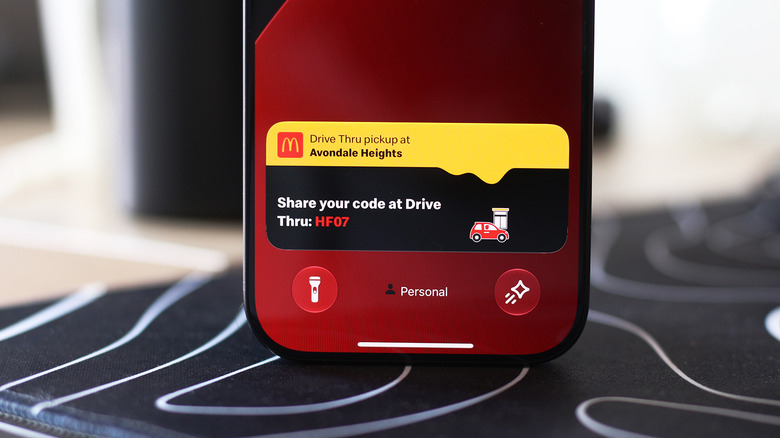
Live Activities are fundamentally different from traditional push notifications. Traditional notifications are transient events: they arrive, display a message, and sit in a notification center log until cleared or interacted with. In contrast, Live Activities are persistent, stateful user interfaces that update dynamically in real time.
The Technical Mechanism
When a user engages with a supported service—such as ordering food, booking an Uber, or tracking a flight—the application registers a Live Activity session with the iOS ActivityKit framework.
- State Updates: Instead of sending a brand-new notification payload for every minor change (e.g., driver is two miles away, driver is one mile away), the app updates the data payload of the existing Live Activity container.
- Power Efficiency: Because these updates utilize optimized system rendering routines rather than waking up heavy application processes repeatedly, they maintain exceptional energy efficiency, ensuring that real-time tracking does not severely degrade iPhone battery life.
- Dual Presentation Layers: Once active, the data is projected in up to two primary locations:
- The Dynamic Island: For devices featuring the hardware cutout, compact views appear around the pill, while long-press gestures expand the interface into rich interactive widgets.
- The Lock Screen: For all compatible iPhones running modern versions of iOS, these modules anchor themselves to the bottom of the lock screen, remaining visible whenever the device is glanced at or awakened via Always-On Display technology.
Real-World Use Cases and Ecosystem Adoption
The initial rollout of Live Activities was met with rapid industry adoption. Major developers across diverse sectors integrated the API:
- Transportation & Logistics: Ride-sharing apps and flight trackers provide minute-by-minute updates on arrival times, terminal changes, and baggage carousel assignments.
- Food & Grocery Delivery: Users can track culinary preparation, courier dispatch, and drop-off proximity without unlocking their phones.
- Sports & Entertainment: Live sports apps pin real-time game scores, inning trackers, and match clocks directly to the lock screen, transforming the iPhone into a passive scoreboard.
- Productivity & Utilities: Timers, voice recorder statuses, and workout tracking modules leverage Live Activities to keep primary utility functions continuously accessible.
Step-by-Step Configuration: Enabling Live Activities on iPhone
While Live Activities are designed to work automatically out of the box upon installing a compatible application, various system settings, Focus modes, or user preferences can inadvertently suppress them. Follow these diagnostic steps to ensure your iPhone is fully configured to display Live Activities.
Step 1: Verify Application-Level Permissions
If you notice that a specific app (such as a food delivery service or sports ticker) is failing to display its real-time updates, you must verify that the feature has not been disabled for that specific program.
- Unlock your iPhone and open the Settings application.
- Scroll down and tap on Apps (or locate the specific application directly in your main app settings list depending on your iOS version).
- Select the app that is failing to provide updates.
- Locate the Live Activities toggle switch. Ensure that this switch is toggled ON (green).
- Pro Tip: Because Live Activities operate independently of standard push alerts, ensure that Allow Notifications is also enabled and that your preferred alert styles (Lock Screen, Notification Center, Banners) are checked if you are missing broader status updates.
Step 2: Confirm Lock Screen Access Permissions
For Live Activities to appear when your phone is resting on a desk or mounted nearby, they must be granted explicit permission to bypass lock screen privacy restrictions.
- Return to the main menu of the Settings application.
- Tap on Face ID & Passcode (or Touch ID & Passcode on older legacy devices).
- Enter your secure device passcode when prompted to authenticate.
- Scroll down through the menu until you locate the section titled Allow Access When Locked.
- Scan the list of toggle options and ensure that Live Activities is switched ON.
- Security Note: Enabling this allows anyone who picks up your locked phone to see the live status updates currently running (e.g., flight times or active deliveries). If privacy is a primary concern, you may manage individual app permissions rather than disabling the master lock screen toggle entirely.
Expanding the Experience: Using Live Activities on Apple CarPlay
Extending real-time monitoring from the handheld device to the automobile dashboard represents one of Apple’s most safety-conscious software integrations. CarPlay bridges the gap between digital utility and automotive safety.
The Philosophy of CarPlay Live Activities
Driving requires strict visual and cognitive focus. Checking an iPhone for delivery ETAs or flight delays while navigating heavy traffic is dangerous and illegal in many jurisdictions. CarPlay mitigates this risk by projecting your iPhone’s active Live Activities directly onto your car’s built-in infotainment display.
- Dashboard Integration: Live Activities automatically integrate into the CarPlay Dashboard—the split-screen view typically positioned to the left of your primary application grid.
- Banner Notifications: If you are running an immersive, full-screen application on CarPlay (such as a primary navigation map), incoming or ongoing Live Activities will cleanly display as non-intrusive banner notifications along the bottom edge of the display.
Step-by-Step Configuration: Enabling Live Activities in CarPlay
If your iPhone is tethered or wirelessly connected to your vehicle’s head unit and you are failing to see your active Live Activities, follow these troubleshooting steps:
- Ensure your iPhone is securely connected to your vehicle via Apple CarPlay.
- On your car’s display screen, open the native Settings application within the CarPlay interface.
- Scroll through the available configuration options and verify that the Live Activities toggle switch is enabled.
- Confirm that Suggestions in CarPlay (sometimes labeled as Suggestions in Dashboard) is also toggled ON, as this allows the system to intelligently surface contextual updates.
- Check Focus Modes: If your iPhone is set to a "Driving Focus" profile that aggressively restricts notifications or third-party data feeds, Live Activities may be suppressed. Open your iPhone’s Control Center, check your active Focus profiles, and adjust the parameters to allow necessary automotive widgets.
Leveraging CarPlay Widgets and Customization
Beyond Live Activities, CarPlay allows users to curate a personalized driving dashboard. By adding dedicated widgets to the leftmost section of the CarPlay Dashboard, drivers gain rapid control over audio playback, calendar appointments, and smart home triggers without navigating deep menu hierarchies. Spending a few minutes exploring the CarPlay settings menu on your vehicle display can drastically improve your in-car digital workflow.
Future Outlook: The Next Generation of Contextual Computing
As we look toward the future of iOS development and hardware engineering, the trajectory of features like Live Activities points toward deeper levels of contextual intelligence and ambient computing.
The Role of Apple Intelligence
With the integration of systemic artificial intelligence initiatives like Apple Intelligence, real-time data feeds are poised to become significantly more proactive. Rather than requiring users to manually initiate a delivery tracking session or pin a sports game score, future iterations of iOS may automatically anticipate user intent—surfacing flight tracking metrics the morning of a trip, or pulling up public transit delays precisely when a user walks toward a subway station.
Cross-Device Continuity
As Apple refines its ecosystem hardware loop—spanning iPhones, Apple Watches, iPads, and vision-pro headsets—the standardization of ActivityKit frameworks ensures that a Live Activity initiated on one device can seamlessly mirror across others. Imagine stepping out of your car, where CarPlay was displaying your flight gate change, and having that exact status seamlessly transition to your Apple Watch wrist haptic or your Mac status menu bar.
Conclusion
Live Activities and their seamless integration into the Dynamic Island and Apple CarPlay represent a masterclass in modern software design. By reducing interaction friction, respecting user attention spans, and prioritizing safety in automotive environments, Apple has turned a simple notification system into an essential operational layer. By following the configuration and troubleshooting steps outlined in this guide, users can ensure their Apple ecosystem is fully optimized to keep them informed, connected, and focused on what matters most.