Executive Overview
In the modern digital landscape, the quest for optimal productivity often leads straight
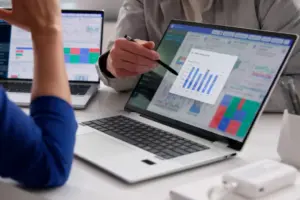
to multi-monitor workstations. Whether managing complex spreadsheets, coding software, monitoring data streams, or simply juggling dozens of browser tabs, expanding your desktop real estate is one of the single most effective ways to upgrade your workflow. However, scaling up your hardware configuration typically demands a financial investment—buying an external monitor, securing the proper desk mount, and managing extra cable clutter.
For millions of remote workers, students, and technology enthusiasts, the solution to this spatial dilemma might already be sitting forgotten in a drawer or gathering dust on a shelf: an older, spare laptop.
Repurposing a legacy laptop into a secondary display sounds like an ideal eco-friendly and cost-effective hack, but it comes with a technical caveat. Unlike desktop monitors equipped with dedicated display inputs, laptops are engineered as all-in-one systems. Their built-in video ports are almost exclusively designed to output signals to external screens, not input them. Simply grabbing an HDMI cable and plugging your primary computer directly into your secondary laptop will yield no results out of the box.
Despite this hardware limitation, advancements in native operating system protocols, third-party open-source applications, and inexpensive external peripherals have made converting a laptop into a second monitor entirely achievable. This comprehensive guide explores the structural mechanisms, software solutions, and step-by-step methodologies required to successfully bridge your devices—spanning Windows, macOS, Linux, and cross-platform configurations.
Detailed Chronology & Technological Evolution of Screen Sharing
To understand how we can seamlessly cast a desktop workspace across multiple heterogeneous devices today, it helps to examine how display-extension technologies have evolved over the past two decades.
The Era of Proprietary Hardware (Early 2000s)
In the early days of multi-monitor setups, users were strictly bound by physical limitations. Achieving a dual-screen configuration required desktop computers equipped with graphics cards featuring multiple physical outputs (such as DVI, VGA, or early HDMI). Laptops were largely isolated islands; utilizing a second screen meant physically connecting an external monitor via hardwired cables. Bridging two distinct computational units—two separate operating systems running on individual motherboards—was largely limited to enterprise-grade KVM switches or cumbersome network-rendering software designed for professional animation studios and server farms.
The Rise of Software-Based Networking (2010s)
As consumer Wi-Fi speeds improved and multi-core processors became standard in portable computers, software developers began exploring network-based display protocols. Virtual Network Computing (VNC) and remote desktop protocols allowed one computer to project its desktop onto another, but these solutions were notoriously plagued by high latency, compression artifacts, and poor frame rates. They were useful for IT administrators troubleshooting remote machines, but completely unviable for daily desktop multitasking or video playback.
Modern Native Ecosystems and Universal Protocols (Present Day)
Today, operating system developers have integrated low-latency display-streaming capabilities directly into the core architecture of their platforms.
- Microsoft integrated Miracast and wireless projection tools into Windows 10 and 11, allowing PCs to act as native wireless receivers.
- Apple introduced AirPlay to Mac, allowing users of modern macOS hardware to effortlessly treat a secondary Apple device as an extension of their desktop workspace.
- Open-Source Initiatives like Deskreen have democratized cross-platform connectivity, using standard local network infrastructure and web browsers to turn virtually any device with a screen into a display node.
Step-by-Step Implementation Guide
Depending on the operating systems powering your primary and secondary devices, you have several paths to achieve a dual-monitor setup. Here is how to navigate them effectively.
1. How to Use a Windows Laptop as a Second Monitor
If both your primary workstation and your spare laptop run Windows 10 or Windows 11, you can take advantage of built-in wireless casting protocols powered by Miracast. This method requires no third-party software, though both machines must be connected to the same Wi-Fi network.
Step-by-Step Setup:
- Prepare the Secondary Laptop:
- Navigate to Settings > System > Projecting to this PC.
- If the options are grayed out, click on Optional features (or Add features depending on your specific Windows build), click View features, and search for Wireless Display.
- Check the box to install the feature and wait for the installation to complete.
- Configure Permissions:
- Return to the Projecting to this PC settings menu.
- Change the first dropdown menu from "Disabled" to Available everywhere on secure networks (or "Available everywhere").
- Open the newly installed Wireless Display app on the secondary laptop to put it into a listening state.
- Connect from the Primary Computer:
- On your main computer, press the Windows Key + K to open the Cast menu.
- Select your spare laptop from the list of available wireless displays.
- Check the box to "Allow mouse, keyboard, touch, and pen input from this device" if you want interactive control.
- Enter the PIN displayed on the secondary laptop screen if prompted.
- Manage Your Display Settings:
- Once connected, press Windows Key + P to choose your preferred display mode: Duplicate (mirror your screen) or Extend (expand your desktop workspace).
Performance Note: Because this method relies on local Wi-Fi, you may experience minor input lag or cursor stutter. It is exceptional for productivity tasks, writing, coding, and managing web applications, but not recommended for fast-paced gaming or video editing.
2. Cross-Platform and Apple Ecosystem Solutions
If your hardware mix involves Apple hardware, or a combination of Windows, Mac, and Linux, the approach changes.
For Apple Ecosystem Users (Mac-to-Mac):
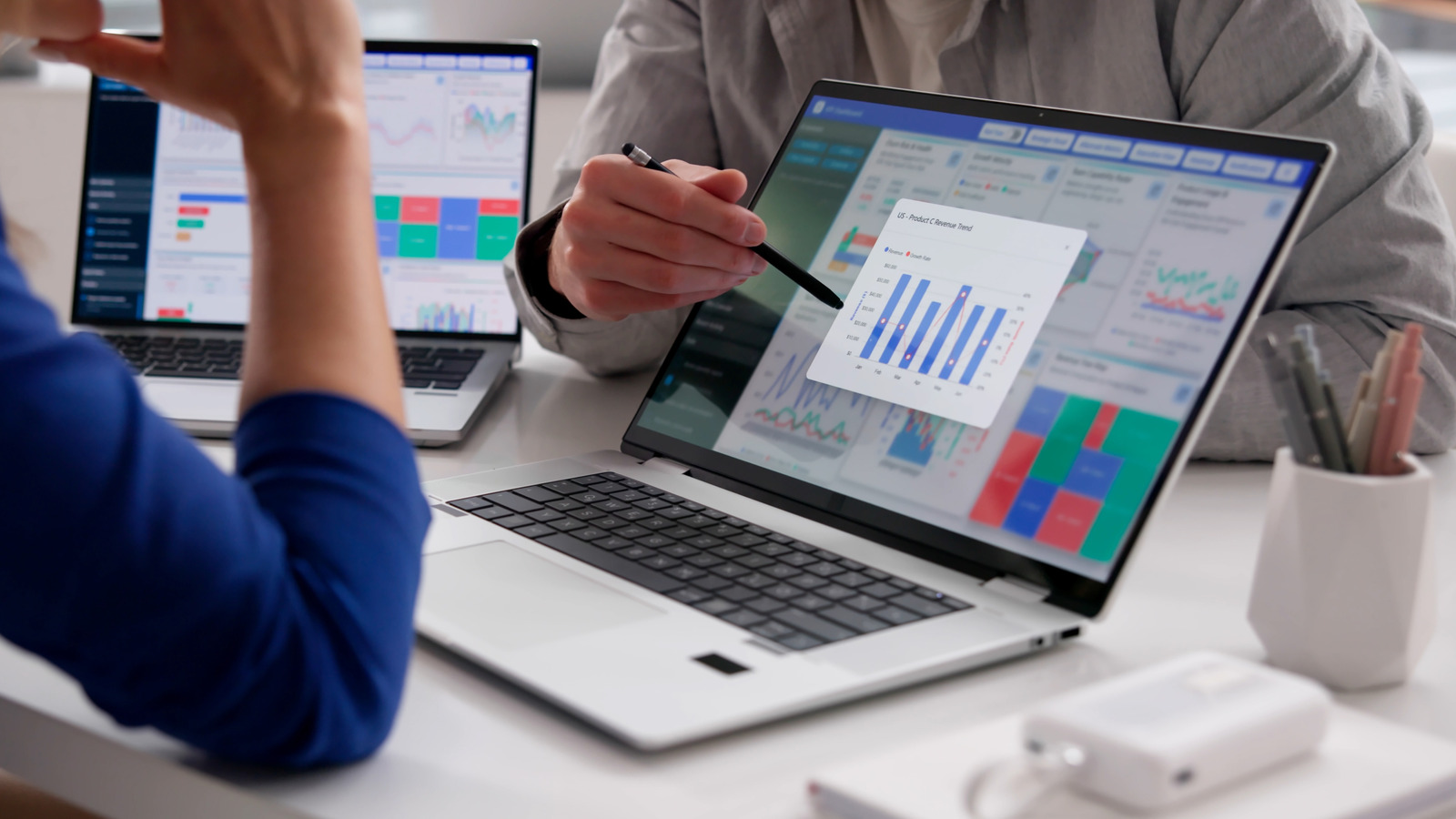
Apple provides a native, highly polished solution called AirPlay to Mac, available on MacBooks manufactured in 2018 or later.
- Ensure both MacBooks are signed into the same Apple ID and connected to the same Wi-Fi network.
- On the spare MacBook (acting as the monitor), go to System Settings > General > AirDrop & Continuity.
- Turn on AirPlay Receiver and set "Allow AirPlay for" to Current User.
- On your primary Mac, go to System Settings > Displays. Click the Add (+) dropdown menu and select your secondary MacBook from the list.
- Configure whether you want to mirror or extend your desktop.
For Mixed Operating Systems (Windows, Mac, and Linux):
When mixing ecosystems—such as extending a Windows PC screen onto an old MacBook or Linux laptop—native tools will not communicate directly. Instead, you can rely on free, open-source utility software like Deskreen.
- Ensure all devices are connected to the same local Wi-Fi network.
- Download and launch Deskreen on your primary computer.
- The software will generate a unique QR code and a local web URL on your primary screen.
- Open the web browser on your spare laptop, type in the provided URL (or scan the QR code using a smartphone or the laptop’s built-in webcam if applicable), and load the page.
- Deskreen will securely connect the devices, defaulting to mirror mode.
Tip: To extend your desktop rather than mirror it using a browser-based tool like Deskreen, you will need to purchase an inexpensive virtual display adapter (commonly referred to as a "HDMI dummy plug") and insert it into an open HDMI port on your primary computer. This tricks your graphics card into registering a physical second monitor, allowing Deskreen to broadcast that empty virtual desktop to your spare laptop.
3. The Wired Hardware Workaround: Using HDMI and Capture Cards
If you operate in an environment with congested Wi-Fi, experience unacceptable wireless lag, or simply prefer a hardwired, zero-latency connection, you can bypass wireless restrictions entirely using affordable video hardware.
As noted, standard laptop HDMI ports are built exclusively for video output. Plugging a standard HDMI cable from one laptop into another will result in nothing happening. However, you can circumvent this with a USB video capture card (often available online for under $15).
How to Set It Up:
- Connect an HDMI cable to the video output port of your primary computer.
- Plug the other end of that HDMI cable into the input port of the USB video capture card.
- Plug the USB end of the capture card into a USB port on your spare laptop.
- On your spare laptop, open your native Camera app or a free, versatile broadcasting tool like OBS Studio (compatible with Windows, Mac, and Linux).
- Set the video source in the application to the capture card. Your secondary laptop will now display the live video feed of your primary computer’s desktop.
This hardware-based method drastically reduces latency compared to Wi-Fi streaming, making it viable not only for extended office workflows but also for connecting external video game consoles (like a Nintendo Switch or PlayStation) directly to your laptop’s display when a television is unavailable.
Supporting Context & Metrics
The Environmental and Economic Impact of Tech Upcycling
According to global electronic waste (e-waste) reports, millions of tons of discarded consumer electronics are generated annually, with functional laptops making up a significant percentage. Studies by consumer technology analysts indicate that over 40% of discarded laptops are replaced simply because users feel they are too slow for modern primary tasks, despite their screens, keyboards, and internal components remaining fully functional.
By repurposing an aging machine as a secondary display:
- Financial Savings: Users save anywhere from $100 to $400 on purchasing a dedicated standalone external monitor.
- Waste Reduction: Prolongs the lifecycle of consumer electronics, directly delaying their entry into local municipal waste streams.
- Workspace Flexibility: Provides a mobile dual-monitor workstation setup for traveling professionals who work from cafes, hotels, or temporary office spaces.
Official Statements and Expert Insights
Industry analysts and hardware engineers frequently highlight the underutilized potential of legacy computing hardware.
"Consumers have been conditioned to view technology through a linear replacement cycle—when a device slows down, it is retired," notes Dr. Marcus Vance, a consumer electronics researcher. "However, the modular nature of modern software allows us to decouple a device’s processing limitations from its physical display capabilities. Turning an old laptop screen into a terminal node via local streaming or capture hardware is one of the most efficient forms of micro-upcycling available to the average user."
Furthermore, software developers behind cross-platform tools emphasize the importance of network security when setting up local display sharing.
"When deploying local network screen-sharing utilities, users must ensure they operate exclusively within trusted private networks," advises Elena Rostova, open-source software security coordinator. "Tools that broadcast desktop feeds over local IP addresses are brilliant for productivity, but deploying them on public Wi-Fi networks without proper encryption or password safeguards can expose sensitive workspace data."
Future Outlook
As remote and hybrid work models continue to dominate the professional sphere, the demand for flexible, modular workspaces will only increase. Looking forward, the tech industry is seeing a steady convergence of software interoperability standards.
Emerging developments in universal casting protocols, WebRTC streaming efficiencies, and ultra-low-latency wireless standards (such as Wi-Fi 7 and advanced Bluetooth topologies) suggest that cross-device screen sharing will soon become entirely frictionless, eliminating the need for third-party workarounds or HDMI dummy plugs.
Until native, cross-platform hardware input natively standardizes across all laptop manufacturers, utilizing built-in OS casting tools, open-source web utilities, and inexpensive capture hardware remains an ingenious, cost-effective way to maximize your existing technology. And if none of these display configurations suit your immediate workspace needs? Remember that your old laptop can still find a productive second career acting as a dedicated smart-home automation hub, a local media server, or a focused writing terminal.