Executive Overview
In the modern digital landscape, the consumption of audio media has evolved past the rigid boundaries of single-device tethering. Today’s listeners demand absolute fluidity: a playlist started on a smartphone during a morning commute must instantly reflect on a desktop workstation upon arrival, and seamlessly transition to a home entertainment system by evening. As one of the preeminent music streaming platforms in the global market, Apple Music has positioned itself at the forefront of this frictionless audio experience. Yet, despite its sophisticated cloud architecture, users frequently encounter a frustrating barrier: a newly added device fails to populate playlists, leaving libraries fragmented and incomplete.
This comprehensive guide serves as an authoritative investigative dive into the mechanics of Apple Music synchronization. Beyond a mere superficial troubleshooting checklist, this article examines the underlying infrastructure of Apple’s ecosystem, the critical dependencies that govern cloud-based library management, and the precise step-by-step methodologies required to achieve absolute harmony across cross-platform devices. Whether you are navigating the tightly integrated parameters of iOS and macOS or bridging the ecosystem gap with Windows PCs and Android hardware, mastering the "Sync Library" feature is essential to reclaiming control over your personal auditory universe.
Detailed Chronology: The Evolution of Ecosystem Synchronization
To fully comprehend why Apple Music behaves the way it does across multiple devices, one must examine the historical trajectory of Apple’s cloud infrastructure. The journey from localized media storage to ubiquitous cloud synchronization represents a decade-long engineering evolution.
The Era of Localized Tethering (Pre-2011)
For the first decade of the digital music revolution, device synchronization was an entirely manual, tethered affair. Users relied on physical USB cables to connect iPods, iPhones, and iPads to desktop computers running iTunes. Every track, album, and playlist had to be meticulously managed, transcoded, and dragged into specific device drawers. If a user purchased or downloaded a track on a laptop, it remained isolated there until the next physical sync occurred.
The Birth of iCloud and iTunes Match (2011–2015)
The announcement of iCloud in 2011 fundamentally altered consumer expectations, introducing the concept of wireless content delivery. This paved the way for iTunes Match, a subscription service that scanned a user’s local music library, matched the tracks against Apple’s massive digital catalog, and made them available in the cloud across up to 10 devices without requiring physical file uploads. This was the foundational architecture that eventually birthed Apple Music in 2015.
The Modern Multiplatform Reality (2015–Present)
When Apple Music launched, it integrated streaming with cloud library management, allowing subscribers to store up to 100,000 songs in the cloud. Over the subsequent years, Apple expanded its footprint far beyond its proprietary hardware ecosystem. Recognizing that music enthusiasts do not live inside walled gardens exclusively, Apple engineered native applications for Windows and Android, transforming Apple Music into a genuinely cross-platform powerhouse.
However, this multi-device expansion introduced new complexities. Discrepancies in operating system permissions, background data restrictions, and account mismatches frequently disrupt the seamless flow of metadata. Understanding this chronological shift highlights why modern synchronization relies entirely on a single, vital protocol: Sync Library.
Supporting Context & Metrics: Navigating Cross-Platform Ecosystems
While Apple Music is heavily optimized for iOS, iPadOS, and macOS, its multiplatform accessibility is a core pillar of its market strategy. Maintaining parity across these diverse environments requires an understanding of how each operating system handles background cloud communication.
+-----------------------------------------------------------------+
|                   Apple Music Cloud Architecture                |
+-----------------------------------------------------------------+
                                  |
         +------------------------+------------------------+
         |                                                 |
         v                                                 v
+------------------+                              +------------------+
|   Apple Devices  |                              | Cross-Platform   |
| (iOS/iPadOS/Mac) |                              | (Windows/Android)|
+------------------+                              +------------------+
         |                                                 |
         | Manual Sync Toggle                              | Enabled by Default
         | (Requires manual opt-in)                        | (Requires account parity)
         v                                                 v
+-----------------------------------------------------------------+
|                       Apple Cloud Library                       |
|          (Up to 100,000 songs synced across 10 devices)         |
+-----------------------------------------------------------------+
Platform-Specific Sync Behavior
- iOS and iPadOS: On Apple’s mobile devices, the cloud library infrastructure is deeply embedded within the operating system’s app frameworks. However, aggressive power-saving protocols, such as Low Power Mode, can throttle background data fetching, leading to delayed or stalled library updates.
- macOS: As the traditional home of digital library management, the Mac desktop app retains the most granular administrative controls over cloud data, including manual force-refresh commands ("Update Cloud Library").
- Windows: Utilizing the modern Apple Music app for Windows (or iTunes for legacy systems), Windows integration mirrors macOS functionality but relies on distinct UI pathways (such as the three-dot settings menu) to govern local-to-cloud mapping.
- Android: Uniquely, the Android version of Apple Music enables Sync Library automatically upon initial sign-in. For Android users, synchronization failures are almost universally traced back to account mismatch errors rather than disabled app toggles.
Key Metrics and Limitations
- Library Capacity: Apple Music allows users to store up to 100,000 songs in their cloud library (excluding tracks purchased directly from the iTunes Store, which do not count against this limit).
- File Format Compatibility: Uploaded tracks must be under 200MB and encoded in AAC, MP3, WAV, AIFF, or ALAC formats. Files exceeding these parameters will fail to sync across the network.
- Device Limit: A single Apple Account can authorize up to 10 devices (with a maximum of 5 computers) for automatic content synchronization and offline playback.
Step-by-Step Technical Guide: How to Master Sync Library
If you have recently signed into a new device and found your carefully curated playlists missing, or your newly added albums absent from your daily rotation, the resolution almost always stems from verifying your account credentials and enabling the Sync Library protocol.
Step 1: Verify Apple Account Parity
The most common point of failure in cross-device synchronization is an account discrepancy—accidentally logging into a secondary Apple Account on the new device while your primary library resides on another.
- On Mobile Devices (iOS/iPadOS/Android): Open the Apple Music application, navigate to the Home tab, and tap your profile picture in the upper corner. Inspect the listed email address. If it does not match the Apple Account tied to your primary music library, sign out immediately and log back in using your primary credentials.
- On Desktop (Mac/Windows): Access the application settings menu to verify that the active user profile corresponds precisely with the account holding your subscription and library data.
Step 2: Enable "Sync Library" Across Your Devices
Once account parity is confirmed, you must explicitly grant the application permission to mirror your cloud library locally.
For iPhone and iPad:
- Open the system Settings application.
- Scroll down and tap on Apps, then locate and select Music.
- Locate the toggle labeled Sync Library and switch it to the ON position.
(Note: If you do not subscribe to Apple Music or iTunes Match, this option will not appear; synchronization for non-subscribers must be handled via manual file transfers).
For macOS:
- Open the Music app.
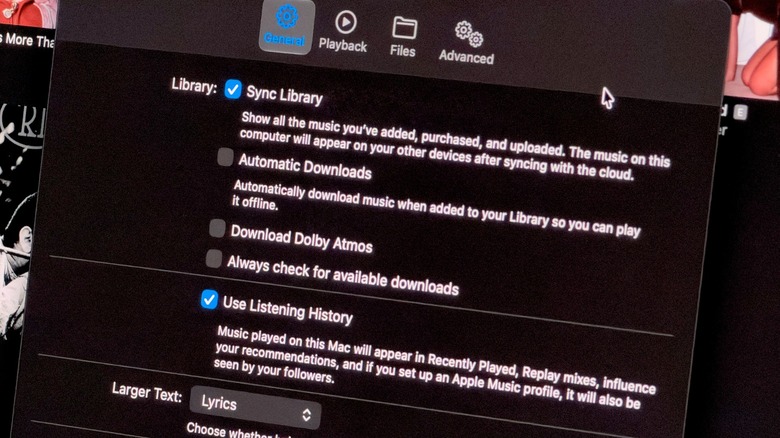
- From the menu bar at the top of your screen, click Music, then select Settings (or Preferences on older macOS versions).
- Navigate to the General tab.
- Check the box next to Sync Library to enable it, then click OK to save your configurations.
For Windows PCs:
- Open the Apple Music app for Windows.
- Click the three-dot menu button in the application interface to access Settings.
- Locate the General or Library section and toggle Sync Library to active.
For Android Devices:
- Open the Apple Music app and navigate to settings.
- Confirm that your account is active. As noted, synchronization is enabled by default on Android, requiring little to no manual intervention beyond initial authentication.
Step 3: Managing Initial Latency
For users with expansive, multi-thousand-song libraries, the initial synchronization phase is resource-intensive. Apple’s servers must cross-reference your local metadata with the global catalog.
- Best Practice: Keep the Music application open, ensure the device is connected to a stable Wi-Fi network, and disable Low Power Mode temporarily. Allow anywhere from 15 minutes to several hours for the initial handshake and download queue to process.
Advanced Troubleshooting: What to Do When Apple Music Refuses to Sync
When standard toggles fail to resolve library discrepancies, advanced administrative interventions are required to force the cloud architecture to re-index your data.
1. Forcing a Cloud Library Update (Desktop Only)
If your Mac or Windows PC fails to pull recent changes made on your mobile devices:
- Open the desktop app, navigate to the File menu, select Library, and click Update Cloud Library. This action manually pings Apple’s servers, forcing an aggressive re-scan of your personal database. (Note: This specific utility is absent from iOS and Android mobile applications).
2. The Power Cycle Reset
If synchronization remains stalled across mobile hardware:
- Navigate back to your device’s system settings.
- Turn Sync Library OFF.
- Force-close the Music application entirely.
- Reopen settings, turn Sync Library back ON, and relaunch the application to trigger a fresh handshake with the iCloud servers.
3. Full Account Re-authentication
Should persistent bugs disrupt your library, signing out of your Apple Account entirely—rebooting the device—and logging back in forces a clean security token refresh, frequently clearing corrupted cache files that block data transmission.
4. Legacy Alternatives: Manual File Transfer
For users who deliberately choose not to subscribe to Apple Music or iTunes Match, cloud synchronization is fundamentally unavailable. In these scenarios, maintaining library parity across a Mac and PC requires traditional local transfers:
- Connect your storage drive or manually copy the physical Music folder from your primary machine to a secondary computer, utilizing legacy iTunes or the modern Apple Devices application to manage local file structures.
Future Outlook: The Horizon of Cloud Audio Integration
As we look toward the future of digital entertainment, the architecture of music streaming and device synchronization is poised for even deeper integration. Industry analysts and audio engineers anticipate several key advancements in the coming years:
-
Real-Time Sub-Second Synchronization: While current cloud syncing happens almost instantaneously under optimal conditions, future iterations of Apple’s cloud backend aim to leverage edge computing to eliminate propagation delays entirely. Changes made to a playlist on a smartwatch in transit will reflect on a desktop studio monitor before
the user even crosses the room.
- AI-Driven Local Caching: Future operating systems will likely utilize predictive machine learning algorithms to pre-load frequently accessed cloud playlists onto local hardware based on user habits, time of day, and spatial location—drastically reducing reliance on continuous background data polling.
- Cross-Ecosystem Harmonization: As interoperability standards between competing tech ecosystems continue to evolve, platforms like Apple Music will likely refine their web-based and cross-platform applications to offer feature parity that matches native iOS and macOS environments down to the smallest metadata tag.
By mastering the fundamentals of Sync Library today, users ensure that their personal audio archives remain pristine, unified, and instantly accessible—no matter which screen or speaker they choose to experience them on.