For millions of desktop computer owners worldwide, the pursuit of elite gaming performance is an expensive endeavor. Enthusiasts routinely invest thousands of dollars in high-end components: multi-core processors, ultra-fast NVMe solid-state drives, high-bandwidth DDR5 RAM, and, most notably, powerful dedicated graphics processing units (GPUs) from industry giants like NVIDIA, AMD, and Intel. Yet, despite hardware capable of rendering photorealistic graphics at blistering frame rates, a surprising number of users experience severe stuttering, underwhelming frame-per-second (FPS) metrics, or inexplicable visual artifacting.
Often, the culprit is not a failing component, an outdated driver, or a bottlenecked CPU. Instead, it is a deceptively simple physical error that takes mere seconds to rectify: the monitor cable is plugged into the wrong port on the back of the computer.
Modern desktop motherboards and dedicated graphics cards share a frustrating architectural overlap. Both often feature physical outputs for HDMI, DisplayPort, and USB-C. Because industry-standard cables fit interchangeably into either location, it is remarkably easy for both novices and intermediate builders to route their primary display connection directly into the motherboard’s I/O panel.
By committing this single oversight, users inadvertently bypass their costly dedicated graphics card, forcing their system to rely either on the CPU’s less powerful integrated graphics or to route heavy graphical workloads through inefficient software pipelines. This comprehensive investigation explores the mechanics of this widespread hardware blunder, the hidden performance penalties it incurs, diagnostic strategies, and the steps required to ensure your PC is operating at its maximum design potential.
Detailed Chronology: The Anatomy of a Common Setup Mistake
To understand how this mistake happens with such frequency, one must examine the physical evolution of desktop PC architecture over the past two decades. Historically, desktop motherboards frequently featured onboard video outputs, while discrete graphics cards occupied expansion slots. However, in earlier eras, integrated graphics were notoriously weak, used almost exclusively for office productivity tasks, and many motherboards lacked video outputs entirely if the paired CPU lacked an integrated GPU (iGPU).
As processor design evolved—particularly with the introduction of Intel’s Core microarchitecture and AMD’s Accelerated Processing Units (APUs)—integrated graphics became vastly more capable. Simultaneously, motherboards began standardizing a wide array of video output ports directly on the back panel to accommodate modern office setups, home theater PCs, and multi-monitor configurations without requiring a discrete GPU.
The Rise of the Dual-Port Dilemma
Today, the vast majority of consumer desktop motherboards feature integrated video outputs (HDMI and DisplayPort) as a baseline feature, regardless of whether the user plans to install a dedicated graphics card. When a user unpacks a pre-built desktop or builds their own system, the physical landscape of the back I/O panel can be visually overwhelming.
The Motherboard Cluster: Located near the top of the rear chassis, surrounded by USB ports, Ethernet jacks, and audio inputs, are the motherboard’s native video outputs. These rely entirely on the processor’s integrated graphics engine.
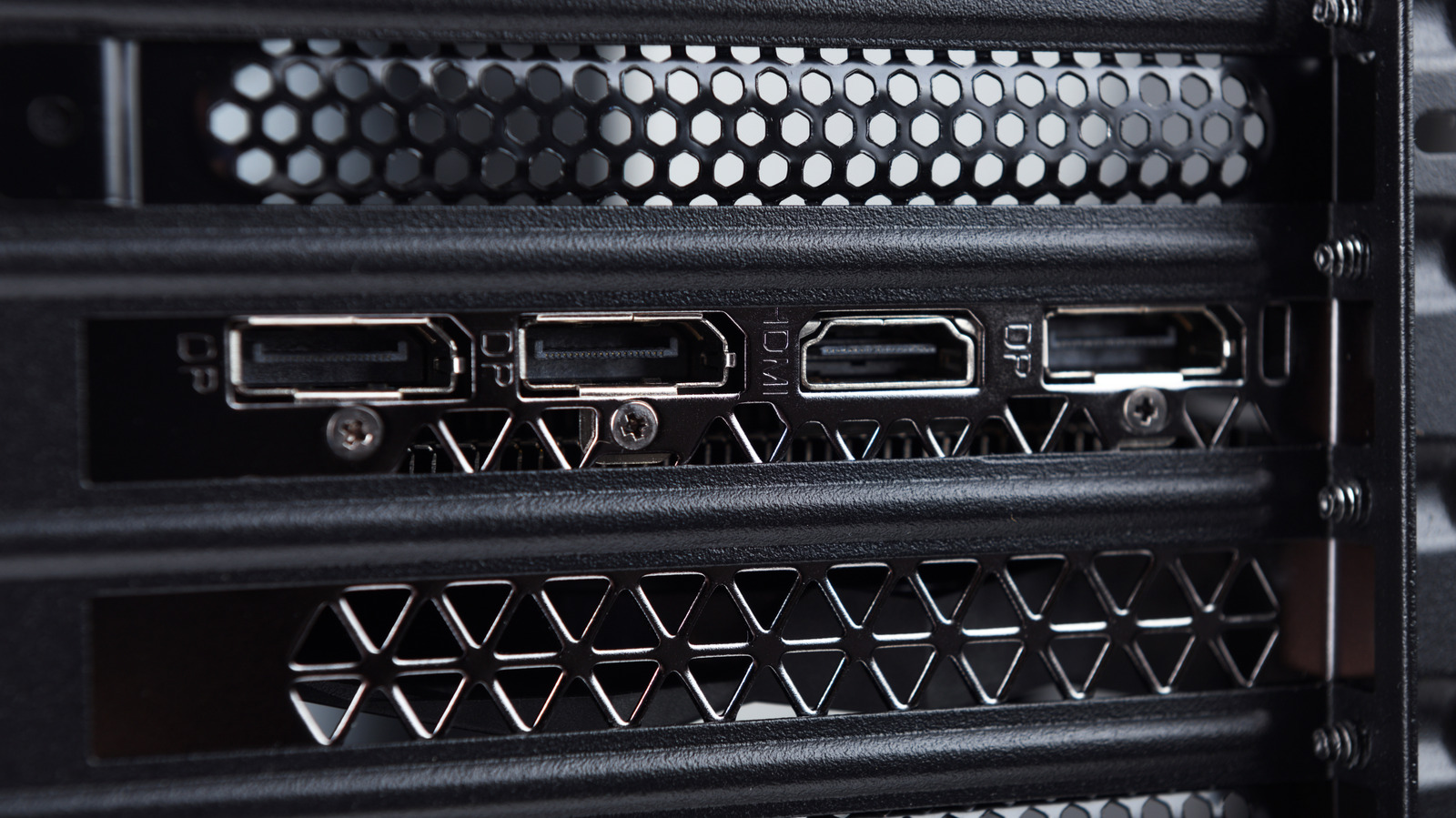
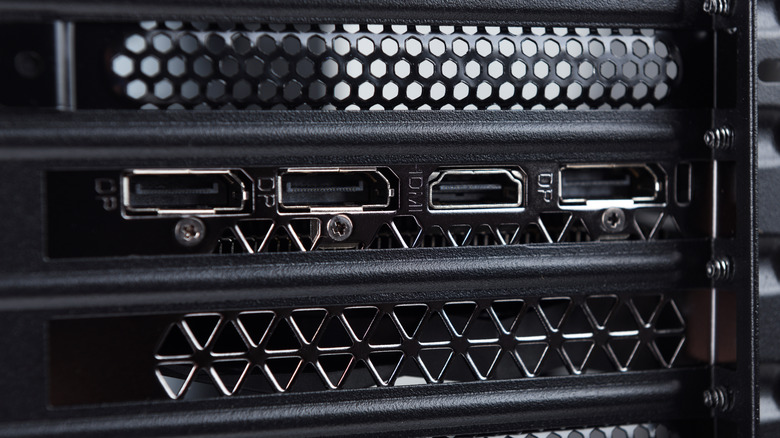
The Discrete GPU Bracket: Located lower down in the tower, aligned horizontally or vertically with the PCIe expansion slots, sits the dedicated graphics card. This card features its own dedicated cluster of HDMI and DisplayPort outputs.
During the chaotic process of unboxing a new rig, plugging in peripherals in a dimly lit room, or managing cables behind a desk, it is astonishingly easy to slide the monitor’s DisplayPort or HDMI cable directly into the motherboard panel. The cable snaps into place with a satisfying click, the monitor receives a signal, Windows boots up normally, and the user remains completely unaware that their high-end hardware investment has been neutralized.
The performance degradation experienced when plugging a monitor into the motherboard depends heavily on the specific hardware configuration of the PC. However, the outcomes generally fall into three distinct categories: absolute incapacitation, severe performance throttling, or subtle frame-rate overhead penalties.
1. The Total Black Screen (Hardware-Level Incompatibility)
For many users, the mistake announces itself immediately through a lack of video output.
Intel "F" and "KF" Series Processors: Intel offers several desktop processors designated by an "F" or "KF" suffix (e.g., Core i7-14700KF). These chips are manufactured without an integrated graphics silicon die to reduce costs. If a user plugs their monitor into the motherboard while running an "F-series" processor, the port is entirely dead. No signal is generated, leaving the user staring at a blank screen.
BIOS/UEFI Disabling: Certain motherboard manufacturers design their firmware to automatically disable integrated graphics the moment a discrete PCIe graphics card is detected. In these instances, the motherboard’s video outputs are rendered inactive, even if the CPU possesses integrated graphics capabilities.
2. The Integrated Graphics Bottleneck
If the CPU features integrated graphics (such as AMD Ryzen processors with Radeon graphics or standard Intel Core chips without the "F" designation) and the motherboard ports remain active, Windows will default to utilizing the iGPU for display output.
While modern integrated graphics solutions—such as AMD’s Radeon 700M series or Intel’s Xe architecture—are remarkable engineering feats capable of playing casual titles like League of Legends or Minecraft, they pale in comparison to dedicated desktop GPUs like an NVIDIA GeForce RTX 4070 or an AMD Radeon RX 7800 XT.
The Rendering Mismatch: When a user launches a demanding AAA title such as Cyberpunk 2077 or Alan Wake 2 while plugged into the motherboard, the system is forced to render heavy ray-tracing and complex geometry on the weak integrated silicon. Frame rates that should soar well above 100 FPS routinely plummet into unplayable single-digit or low double-digit slideshows.
3. The Passthrough Overhead Penalty
A more insidious scenario occurs in certain Windows configurations where the dedicated GPU is technically rendering the game, but the video frame is subsequently passed through the integrated graphics controller to reach the monitor plugged into the motherboard.
This introduces unnecessary data routing, bus congestion, and processing latency. While Microsoft and hardware vendors do not publish standardized percentage losses for this specific bottlenecked pipeline, synthetic benchmarks and user telemetry consistently demonstrate noticeable frame time spikes, micro-stuttering, and reduced 1% low frame rates. Gamers often mistake this erratic performance for driver instability or thermal throttling, failing to look at the physical cable connection.
Diagnostic Strategies: How to Verify and Fix Your Setup
Resolving this performance-killing mistake requires a systematic approach to physical inspection, hardware configuration, and software verification.
Step 1: Physical Inspection of the Chassis
To determine if your monitor is plugged into the correct port, shut down your computer safely and inspect the rear panel of your desktop tower:
Locate the Motherboard I/O: Look near the top of the case, directly adjacent to your USB ports and Ethernet cable. If your monitor cable is plugged into this cluster, you are plugged into the motherboard.
Locate the Dedicated GPU: Look further down the back of the case, where horizontal metal slots align with your expansion cards. Your graphics card will have prominent branding, cooling fans visible through its shroud, and its own cluster of video output ports. Your monitor cable must be plugged here.
+-------------------------------------------------+
| [USB] [Audio] [MOTHERBOARD VIDEO PORTS]   <-- X | (WRONG: Uses Integrated Graphics)
+-------------------------------------------------+
|                                                 |
| [EXPANSION SLOTS]                               |
|                                                 |
| [GPU VIDEO PORTS (HDMI / DisplayPort)]    <-- V | (CORRECT: Uses Dedicated GPU)
+-------------------------------------------------+
Step 2: Correcting the Connection
Power down your desktop PC completely via the Windows operating system and flip off the power supply switch.
Unplug the monitor’s HDMI or DisplayPort cable from its current position on the motherboard.
Plug the cable firmly into an available port on your dedicated graphics card.
Power the PC back on. Ensure your monitor’s input source is set correctly (e.g., switching from HDMI 1 to DisplayPort 1 if you switched cable types).
Step 3: Verifying Windows Display Settings
Once the system boots up using the dedicated graphics card, it is vital to confirm that Windows is fully utilizing the hardware and that your monitor is operating at its maximum refresh rate capability.
Right-click on your Windows desktop and select Display settings.
Scroll down and click on Advanced display.
Review the listed active display information. You should see your dedicated graphics card (e.g., NVIDIA GeForce RTX 4080 or AMD Radeon RX 7900 XTX) listed as the active adapter driving the display, rather than Intel UHD Graphics or AMD Radeon Graphics.
Check the Choose a refresh rate dropdown menu.
Crucial Warning: Many gamers purchase high-end 144Hz, 240Hz, or 360Hz gaming monitors, plug them correctly into their graphics card, but leave the operating system refresh rate set to the default 60Hz. To unlock the fluidity you paid for, ensure your monitor’s refresh rate is maximized in this menu. A monitor operating at 60Hz will only display 60 frames per second, regardless of whether your high-end GPU is rendering 200 frames per second.
Future Outlook: Architectural Shifts and Error-Proofing
As PC hardware continues to evolve, manufacturers are actively exploring ways to eliminate user friction and design oversights that lead to performance bottlenecks.
The Shift Toward Integrated Graphics as Standard
In the near future, the historical division between "systems with integrated graphics" and "systems with dedicated graphics" is blurring. Recent processor architectures—including Intel’s Core Ultra line and AMD’s Ryzen 7000/9000 desktop processors—now feature basic integrated graphics built into every mainstream CPU model, rather than withholding iGPUs from high-end or enthusiast tiers.
While this provides an invaluable troubleshooting safety net for users whose dedicated GPUs fail, it simultaneously increases the likelihood of accidental motherboard port routing by casual users who assume all video ports are functionally identical.
Intelligent Software Warnings
Industry analysts and hardware enthusiasts have long advocated for automated diagnostic protocols within motherboard BIOS firmware and operating system suites. Future iterations of Windows and motherboard companion software (such as ASUS Armoury Crate, MSI Center, or Gigabyte Control Center) are expected to implement active telemetry detection.
If a system detects a high-performance discrete NVIDIA or AMD GPU installed in a PCIe slot, yet receives continuous display telemetry from the motherboard’s integrated video output while a 3D application is running, automated pop-up diagnostics could soon alert the user to the misrouted cable in real-time.
Until such fail-safes become standardized across the industry, consumer education remains the primary defense against this invisible performance killer. By taking a moment to inspect the rear of the PC chassis and ensuring that display cables are anchored firmly to the dedicated graphics card, users can instantly reclaim the full processing power of their gaming rigs without spending a single additional cent on hardware upgrades.