Executive Overview
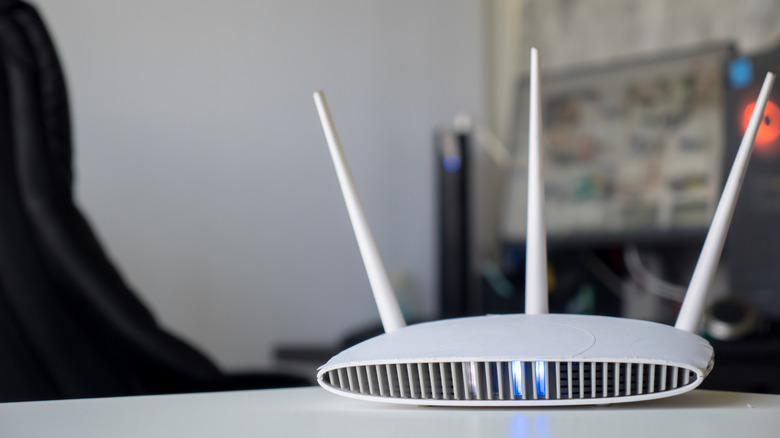
In the modern digital household, the Wi-Fi router acts as the invisible heartbeat of daily operations. From remote work meetings and high-stakes financial transactions to 4K streaming and competitive online gaming, our reliance on uninterrupted internet connectivity is absolute. Yet, when that connection falters, troubleshooting often begins with a frustrating exercise in guesswork. We stare blankly at the mysterious array of flashing, pulsing, and solid lights on the front of our hardware, wondering what language the device is trying to speak.
For owners of Netgear routers and Orbi mesh systems, these LEDs are far more than decorative adornments; they serve as a real-time diagnostic dashboard. Ranging from steady green indicators of robust health to alarming amber pulses or erratic blinking patterns, the lights communicate critical data regarding firmware status, WAN (Wide Area Network) connectivity, wireless traffic, and hardware integrity.
Understanding how to read these visual cues is an essential skill for any modern smart-home owner. Without opening a manual or logging into an administrative portal, a quick glance at your Netgear device can tell you whether an outage is localized to your home network, if your internet service provider (ISP) has dropped the signal, or if a specific Ethernet port is underperforming. This comprehensive guide breaks down the anatomy of Netgear router and mesh system indicator lights, separating critical diagnostic signals from routine operational displays.
Detailed Chronology: The Evolution of Router Diagnostics and Visual Indicators
To understand why modern routers feature such complex arrays of flashing lights, it is helpful to look back at the evolution of networking hardware design.
The Early Days of Networking: Binary Indicators
In the early era of consumer networking—spanning the late 1990s and early 2000s—routers and modems featured rudimentary indicator panels. These early devices typically relied on a simple binary system: an LED was either on (active) or off (inactive). Labeled with basic acronyms like PWR (Power), TX (Transmit), RX (Receive), and COL (Collision), these lights were designed primarily for network engineers and IT technicians who understood packet transmission. For the average consumer, these panels offered little actionable troubleshooting value beyond confirming that electricity was flowing to the unit.
The Wi-Fi Revolution and Multi-Colored LEDs
As wireless networking migrated from corporate offices into millions of residential living rooms, the design philosophy of networking hardware shifted dramatically. Manufacturers recognized that devices needed to be user-friendly. This era saw the introduction of multi-colored LEDs—predominantly shifting between green, amber, and red.
- Green became the universal signifier for normal, high-speed operation.
- Amber (or yellow) was introduced as a cautionary state, indicating degraded performance, fallback speeds (such as an Ethernet port dropping from 1 Gbps to 100 Mbps), or a non-optimal connection.
- Red was universally reserved for critical errors, hardware faults, or complete connection failures.
The Modern Minimalist Shift: Mesh Systems and Ambient Feedback
With the explosive growth of smart-home ecosystems and the advent of whole-home mesh Wi-Fi systems—such as Netgear’s Orbi line—router design underwent another paradigm shift. Bulky, industrial boxes covered in dozens of blinking green lights fell out of favor. Consumers demanded sleek, unobtrusive hardware that could blend seamlessly into modern living room decor.
Netgear responded by minimizing the visual clutter, reducing traditional routers to streamlined indicators and transforming Orbi mesh satellites and routers into minimalist pillars. Instead of rows of blinking port lights, modern Orbi systems rely on a single, elegant LED light ring or strip positioned discreetly on the chassis. This singular light utilizes color shifts and pulsing animations to communicate complex status updates—from syncing rings and firmware update progress to internet dropouts—without demanding unnecessary visual attention.
Supporting Context & Metrics: Decoding the Netgear Diagnostic Dashboard
To effectively troubleshoot your network, you must understand the specific hierarchy of Netgear’s indicator lights. They can be broadly categorized into primary status lights, secondary utility lights, and specialized mesh system indicators.
1. The Core Trio: Power, Internet, and Wi-Fi LEDs
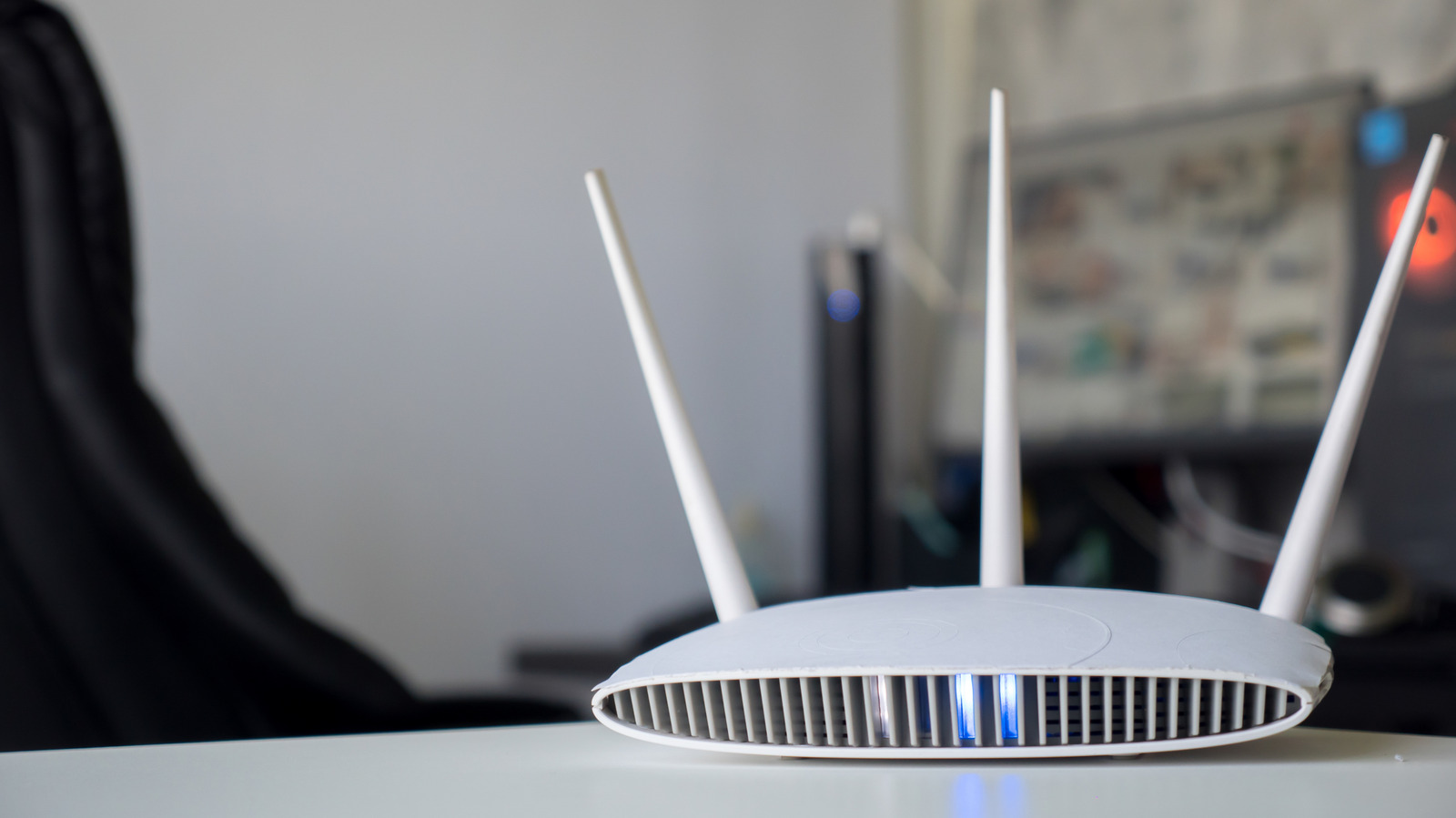
These three indicators represent the foundational operational pillars of any standard Netgear router. If your network is failing, these are the first lights you should examine.
-
The Power LED:
- Symbol: Usually denoted by the universal circle-and-line power icon.
- Meaning: Indicates whether the device is receiving adequate power and successfully booting its internal software.
- States: A solid light confirms normal operation. If the light is blinking, the router is typically in the process of booting up, updating its firmware, or recovering from a system crash. If the power light is unlit, check your physical power connections and wall outlet. Persistent unresponsiveness often requires a hard factory reset via the physical reset pinhole.
-
The Internet LED:
- Symbol: Often represented by a small circle orbiting a larger sphere, or a stylized globe.
- Meaning: Signifies the status of your connection to the outside world via your cable, DSL, or fiber modem.
- States: A solid white or green light indicates that the router has successfully established a broadband connection and secured an IP address from your ISP. An amber light suggests that the physical cable connecting your modem to the router is loose, damaged, or that the ISP connection is degraded. A blinking light typically indicates data transmission activity between your router and the wider internet.
-
The Wi-Fi LED:
- Symbol: A central dot accompanied by outward-curving broadcast waves.
- Meaning: Shows general wireless traffic and radio frequency (RF) activity across your local access points.
- States: A steady or flickering light indicates that wireless radios are active and data packets are being actively transmitted to and from your connected wireless clients (phones, laptops, smart TVs).
2. Specialized Utility and Port LEDs
Beyond the core trio, Netgear routers feature specific indicators designed for advanced hardware monitoring and device connectivity.
-
Wi-Fi Band LEDs (2.4GHz, 5GHz, and 6GHz):
Modern Netgear routers feature dedicated indicators for each wireless frequency band they broadcast. As multi-band routers—including Wi-Fi 6, Wi-Fi 6E, and Wi-Fi 7 systems—become standard, these lights confirm which bands are actively broadcasting. A lit 6GHz indicator, for instance, confirms that your modern client devices can tap into the ultra-wide, uncongested channels reserved for high-performance computing and immersive streaming. -
Ethernet Port LEDs:
Located adjacent to the physical LAN/WAN ports on the rear of the router, these numbered indicators are crucial for hardwired devices like desktop gaming rigs, network-attached storage (NAS), and smart hubs.- White or Green: Indicates a high-speed Gigabit Ethernet connection operating at peak performance (1 Gbps or higher).
- Amber: Signifies a legacy or degraded connection speed (typically 100 Mbps or 10 Mbps). If you see an amber light on a wired gaming PC, inspect your Ethernet cable; you may be using an outdated Cat5 cable instead of a high-speed Cat5e, Cat6, or Cat7 cable.
-
USB LEDs:
If your Netgear router features a built-in USB port for network storage or printer sharing, a dedicated USB LED will illuminate when an external drive is successfully mounted and recognized by the router’s firmware. -
WPS LED (Wi-Fi Protected Setup):
Represented by a router emitting signal waves, this light confirms the status of a WPS pairing sequence. While convenient for connecting smart devices without typing long passwords, cybersecurity experts strongly recommend disabling WPS in your router’s admin settings to prevent unauthorized network infiltration.
3. Reading the Lights on a Netgear Orbi Mesh System
Netgear’s Orbi mesh architecture eliminates complex front panels in favor of a minimalist design philosophy. Understanding an Orbi satellite or router requires looking at its dual-indicator configuration: a front-facing status LED and a rear-facing power/firmware LED.
-
The Front LED (Connection and Sync Status):
- Solid White: The satellite or router is booting up.
- Pulsing White: The device is attempting to sync with its companion router or satellite.
- Solid Magenta (Pink): The satellite cannot communicate with the main router, or the router has lost its internet connection. This is the classic "red light of death" indicating a synchronization breakdown.
- Pulsing Magenta: The satellite is out of range of the main router and cannot establish a stable backhaul connection. Move the hardware closer together.
- Solid Amber: The connection between the router and satellite is fair, but suboptimal due to distance or physical interference (thick walls, metal appliances).
- Solid Blue: The connection is strong, robust, and operating at peak efficiency. (Note: This blue light typically turns off automatically after a few minutes to avoid disturbing dark rooms).
-
The Rear LED:
- Dedicated strictly to power input status, hardware health, and low-level firmware recovery procedures.
Official Statements and Industry Insights
Networking hardware manufacturers like Netgear design these visual diagnostic systems with a dual purpose: empowering end-users to perform basic self-service while minimizing unnecessary technical support calls.
According to Netgear’s engineering documentation and customer support directives, the color-coding methodology is standardized across global product lines to ensure rapid identification of faults. In official technical advisories, Netgear emphasizes that users should always cross-reference physical LED states with the Netgear Nighthawk or Orbi mobile applications. While physical lights provide an immediate macro-view of network health (e.g., "Internet is down"), software applications provide granular micro-data (e.g., "WAN IP address lease expired" or "Firmware update 4.6.8.5 is downloading").
Industry analysts specializing in smart-home infrastructure note that as routers transition toward automated self-healing algorithms and AI-driven channel optimization, the physical indicator light remains an indispensable diagnostic anchor. When an automated update fails or a power surge bricks a device’s bootloader, software apps become useless—leaving physical LEDs as the sole diagnostic interface available to the user.
Future Outlook: The Next Generation of Router Diagnostics
As consumer networking continues to evolve at a breakneck pace, the ways in which routers communicate with their users are also undergoing transformation. What does the future hold for router status indicators?
-
Micro-OLED and E-Ink Displays:
Moving beyond simple multi-colored LEDs, high-end enterprise and enthusiast-grade routers are beginning to incorporate small, integrated monochrome OLED or E-Ink screens. These tiny displays can output real-time textual data—such as current download/upload speeds in megabits per second, connected client counts, active IP addresses, and specific error codes—eliminating ambiguity entirely. -
Context-Aware Ambient Lighting:
Future residential routers are poised to integrate soft, customizable ambient lighting that serves a dual purpose. Beyond functioning as subtle room accent lighting or nightlights, these fixtures will use gentle color shifts (such as a soft breathing pulse) to signal network events without resorting to harsh, blinking industrial LEDs that users often feel compelled to cover with electrical tape. -
Augmented Reality (AR) Diagnostics:
As spatial computing and AR headsets become more mainstream, physical status lights may eventually be supplemented—or even replaced—by digital overlays. Imagine holding up your smartphone or AR glasses to your Netgear router; an augmented interface could instantly project diagnostic data, signal strength heatmaps, and step-by-step troubleshooting guides directly over the physical hardware in real-time.
Until those advanced technologies become standard in every household, however, understanding the traditional language of Netgear’s LEDs remains your most powerful tool. By learning to decode the blinking greens, solid blues, and cautionary ambers of your router and mesh systems, you can diagnose connectivity roadblocks in seconds—transforming network troubleshooting from a guessing game into a precise science.