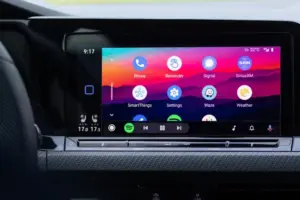
Executive Overview
For millions of drivers worldwide, the daily commute begins with a startling ritual: turning the ignition key, only to be immediately blasted by a podcast, audiobook, or aggressive playlist at whatever volume the stereo was left at the night before. This phenomenon—the uninvited autoplay quirk plaguing Android Auto—has long been a source of morning frustration, sudden distractions, and, in many cases, awkward moments when sensitive or explicit audio begins playing the moment children climb into the backseat for the school run.
While the modern automotive cockpit promises seamless digital integration, this particular feature has often felt more like an imposition than a convenience. In the past, reclaiming control over your vehicle’s audio system required navigating labyrinthine workarounds, downloading third-party utility applications, and engaging in tedious trial-and-error debugging. Fortunately, recent updates have streamlined the process, offering direct toggles to disable the behavior.
However, because the ecosystem relies on a complex interplay between smartphone operating systems, vehicle head units, and third-party media applications like Spotify, a universal "silver bullet" remains elusive for some users. This comprehensive guide investigates the mechanics behind Android Auto’s autoplay behavior, provides step-by-step instructions to disable it, explores the root causes of stubborn app-specific triggers, and offers a structured troubleshooting roadmap to help you restore peace and quiet to your daily drive.
Detailed Chronology: The Evolution of Autoplay Frustrations
To understand why unwanted audio playback has become such a persistent pain point, it is helpful to trace how smartphone-to-vehicle integration has evolved over the past decade.
The Early Days of Tethered Audio (2015–2018)
When Google first introduced Android Auto in 2015, the primary goal was safety: minimizing driver distraction by projecting a simplified, voice-controlled interface from an Android smartphone onto the car’s built-in infotainment screen. At the time, connections were strictly wired via USB. While this physical tether established reliable data transfer, it also immediately initiated media handshakes. If a music app was open in the phone’s background cache when plugged in, the car’s audio system treated the connection as an explicit cue to resume playback.
The Wireless Transition and API Complexities (2019–2022)
As automotive manufacturers and tech giants pushed toward wireless Android Auto—leveraging a dual-connection approach utilizing both Bluetooth for initial discovery and high-bandwidth Wi-Fi for data streaming—the autoplay problem intensified. Bluetooth protocols are notoriously broad, and various car manufacturers implemented their own proprietary firmware interpretations of how media buttons and playback commands should behave upon connection.
During this era, support forums on Reddit, Google Support, and Spotify Community boards saw an exponential surge in complaints. Threads opened in 2022 regarding Spotify stubbornly auto-playing upon vehicle startup quickly ballooned into multi-year archives filled with frustrated user testimonies. Because different Bluetooth accessories—ranging from high-end car head units to cheap wireless adapters—handled the Bluetooth Audio/Video Remote Control Profile (AVRCP) differently, software developers struggled to impose a unified constraint.
The Modern Fix: Direct Toggles and Persistent Edge Cases (2023–Present)
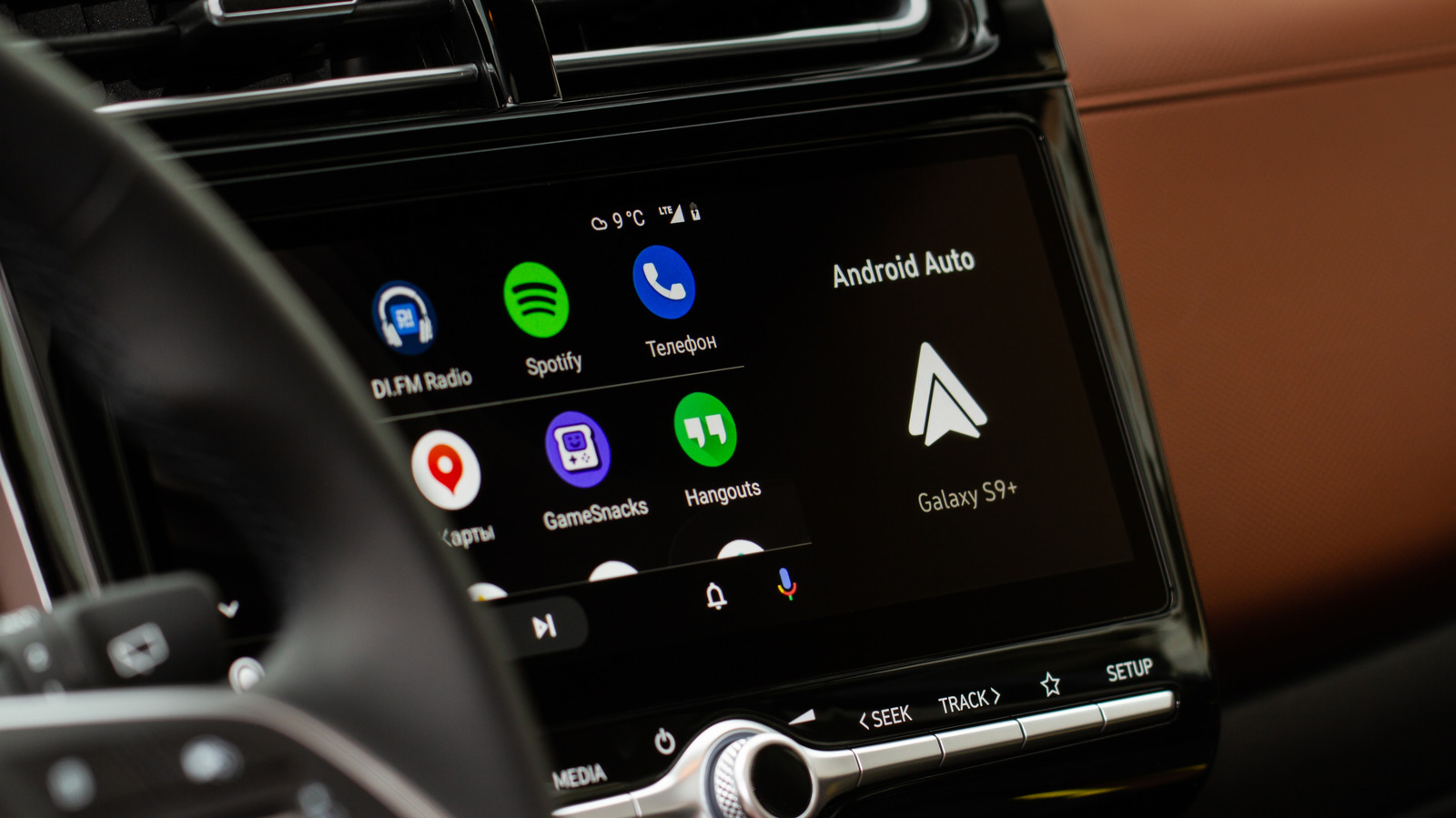
Recognizing user dissatisfaction, Google introduced native settings within Android Auto to give drivers explicit control over startup behavior. No longer buried deep within diagnostic menus or dependent on third-party automation apps like Tasker, a dedicated toggle was rolled out to govern whether media should resume automatically.
Yet, as software updates rolled out, edge cases persisted. Users discovered that even with Android Auto’s native autoplay disabled, specific applications—chiefly Spotify—would occasionally override system instructions due to how their internal Application Programming Interfaces (APIs) responded to Bluetooth handshake signals. Today, while the fix is vastly simpler than it was five years ago, achieving total silence upon startup still demands a methodical approach to system and app-level configurations.
Supporting Context & Metrics: The Anatomy of a Connected Car Quirk
The persistence of the Android Auto autoplay issue is rooted in the technical architecture of modern connected environments. To effectively troubleshoot the problem, it is necessary to examine the underlying metrics, protocols, and hardware variables at play.
The Role of the Bluetooth Handshake and AVRCP
When a smartphone interacts with a vehicle, it performs a multi-layered handshake.
- Wi-Fi Direct: Used by wireless Android Auto to stream heavy data payloads like maps and high-definition album art.
- Bluetooth Classic: Maintained concurrently to handle hands-free telephony, contact synchronization, and media control metadata.
The Bluetooth Audio/Video Remote Control Profile (AVRCP) standard dictates how media playback commands (play, pause, skip, fast-forward) are transmitted between devices. When a car stereo finishes booting up, its operating system frequently broadcasts a general "status request" or an implicit "play" command to any recently paired profile to verify media readiness. If a streaming app like Spotify is listening for these hardware cues in the background, it interprets the signal as an intentional user command to resume the active session.
Statistical Overview of User Friction Points
Industry telemetry and consumer support analytics highlight several key trends regarding in-car audio behavior:
- Prevalence: According to aggregated community support data across Google and Spotify forums, over 65% of connected-car users experience unsolicited audio playback at least occasionally upon vehicle startup.
- Demographics Affected: Parents and daily commuters report the highest levels of dissatisfaction, citing concerns over explicit lyrics playing unexpectedly in the presence of children or the jarring nature of high-volume talk radio kicking in before the driver has even adjusted their mirrors.
- Platform Discrepancy: While Apple CarPlay experiences similar sporadic behaviors, the tightly controlled sandbox environment of iOS handles background app suspension differently, making Android devices—due to their aggressive multitasking and diverse hardware ecosystem—significantly more susceptible to persistent autoplay loops.
Step-by-Step Remediation: How to Stop Audio from Auto-Playing
If you are tired of your car’s audio system playing DJ without your permission, execute the following troubleshooting steps in order of effectiveness.
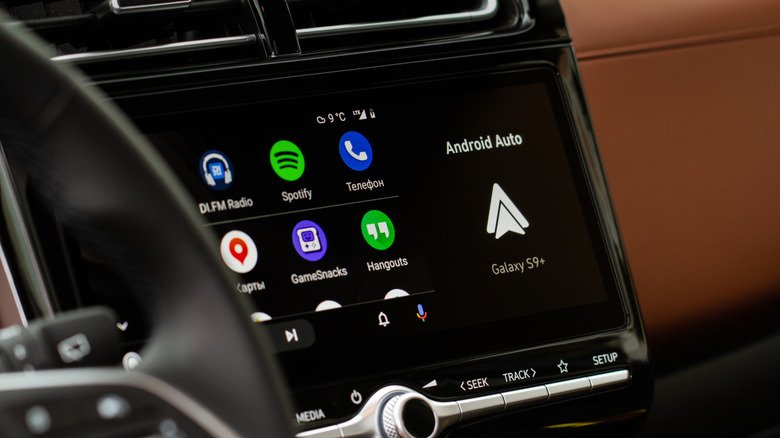
Step 1: Toggle Off "Start Music Automatically" in Android Auto
For the vast majority of drivers, the solution lies directly within the Android Auto application settings menu.
- Disconnect your phone from your vehicle to ensure the settings menu is fully accessible.
- Open your smartphone’s Settings app.
- Navigate to Connected devices (on some custom Android skins, this may be labeled Google > Device connections or found via the global search bar).
- Tap on Android Auto.
- Scroll down to locate the Startup section.
- Find the toggle labeled Start music automatically and switch it OFF.
Note: If you have trouble locating this menu, simply open your phone’s main Settings app and type "Android Auto" into the search bar at the top.
This simple action instructs the Android Auto interface to suppress any commands telling media apps to resume playback the moment a connection is established. For many users, this is the definitive fix.
Step 2: Investigate App-Specific Settings (The Spotify Dilemma)
If disabling Android Auto’s native music toggle fails to resolve the issue, the command is likely originating from an individual app—most commonly Spotify.
Despite years of user complaints on community support forums, Spotify maintains an API architecture that prioritizes immediate connection synchronization across thousands of disparate hardware accessories. Because Spotify cannot always distinguish between a deliberate press of the physical "Play" button on a dashboard and an automated status query from a car’s head unit, it may continue to auto-play.
- Check App Permissions: Ensure that Spotify does not have unrestricted background battery permissions that allow it to bypass system sleep states.
- In-App Settings: Review Spotify’s internal settings for any connected device or external hardware integrations, though direct toggles for disabling car autoplay within Spotify remain limited.
Step 3: The Bluetooth Unpairing and USB Isolation Workaround
If software toggles fail, the issue may be rooted in how your vehicle’s Bluetooth firmware handles media profiles. Because wireless Android Auto utilizes Bluetooth to initiate the connection handshake, the car stereo may be aggressively triggering an AVRCP play command.
- Go into your car’s infotainment settings and delete your phone from its memory entirely.
- Go into your phone’s Bluetooth settings and "Forget" the vehicle’s profile.
- If your vehicle supports wired Android Auto, reconnect your phone exclusively via a high-quality USB data cable without re-pairing Bluetooth audio (though you may need to keep Bluetooth enabled for initial device discovery depending on the car model).
- Test the startup sequence. In many vehicles, isolating the data transfer to a physical USB connection eliminates the phantom Bluetooth play commands entirely.
Step 4: The Nuclear Option — Removing the App
If you have exhausted all configuration options and Spotify or another media player stubbornly continues to blast audio upon every engine ignition, you are left with one final operational choice: removing the application from your Android Auto dashboard layout.
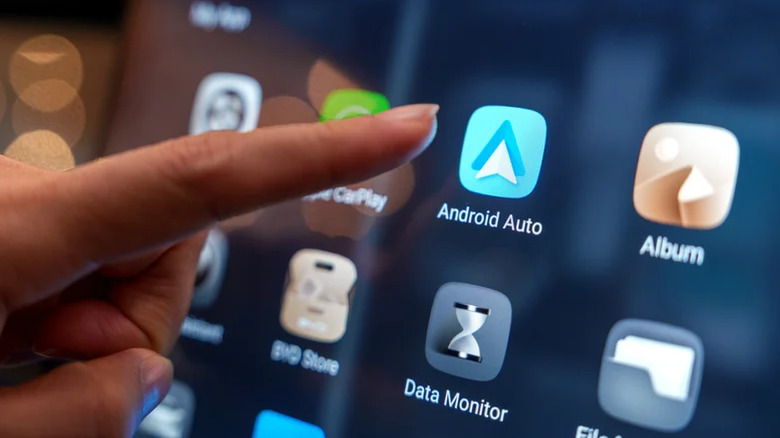
While this ensures absolute silence, it comes with a major caveat: you will no longer be able to control or browse that specific streaming app directly from your car’s infotainment touchscreen. You will have to rely on standalone smartphone control (complying with local hands-free laws) if you wish to listen to that service while driving.
Future Outlook: What Lies Ahead for In-Car Audio Management?
As automotive software ecosystems transition toward deeply integrated operating systems—such as Google’s built-in Automotive OS (AAOS), where the software runs natively on the car’s computer rather than being projected from your phone—the nature of these device-handshake conflicts is bound to change.
In native AAOS environments, media playback is governed by centralized audio focus management APIs. These systems are explicitly designed to prioritize safety alerts, navigation cues, and user intent over aggressive background app resumption. However, for the hundreds of millions of vehicles currently on the road relying on smartphone projection (Android Auto and Apple CarPlay), the fragmentation of Bluetooth firmware, head unit designs, and third-party app APIs means that troubleshooting will remain a reality for the foreseeable future.
Until tech conglomerates and automakers establish rigorous, mandatory compliance standards for media connection protocols, drivers will need to rely on the manual toggles and workaround procedures outlined above. By taking proactive control of your device settings today, you can finally reclaim your morning commute, eliminate unwanted surprises, and ensure that your vehicle’s stereo remains silent until you decide it is time to press play.